
Excel is useful when you need to organise data in rows and columns. People use it for reports, invoices, price lists, schedules, records, financial summaries, and many other types of data.
But Excel is not always the best format when you need to share that information as a document.
A Word file is easier to read, edit, print, and include in reports. It also gives you space to add a heading, short notes, a summary, company details, or extra explanation around your table.
The problem starts when you try to move Excel data into Word manually. Copying and pasting a table may look simple, but the layout can change. Columns may not fit the page. Rows may look uneven. Spacing can break. A clean spreadsheet can quickly turn into a messy Word document.
This is why many users look for a simpler way to convert an Excel sheet to a Word file.
What Does It Mean to Convert Excel to Word
Converting Excel to Word means turning spreadsheet data into a Word document.
Excel sheets contain tables, rows, columns, numbers, text, lists, or records. When you convert it to Word, that information becomes part of a document instead of staying only in a spreadsheet format.
For example, you may have a sales table in Excel. The data is useful, but it may not look suitable for a report or client document. By converting it into Word, you can place the table inside a cleaner document layout.
This makes the file easier to read, explain, print, or share with others.
Why Users Convert Excel Sheets to Word
Users usually convert Excel files to Word when the spreadsheet data needs to be presented in a document format.
Excel is better for working with data. Word is better for presenting that data with context.
You may need to convert Excel to Word when you want to:
-
Turn a spreadsheet into a report.
-
Share a table in a cleaner format.
-
Add notes or explanations around the data.
-
Send a document instead of a spreadsheet.
-
Print a readable version of the file.
-
Use Excel data in a proposal, assignment, invoice, or summary.
This is common for students, office workers, business owners, teachers, accountants, and teams that work with regular data files.
The goal is simple. The data starts in Excel, but the final file needs to look like a Word document.
Problem With Manual Excel to Word Formatting
Many users try to copy data from Excel and paste it into Word. This can work for a small table, but it often creates formatting problems.
The table may become too wide for the page. Some columns may shrink while others stretch. Borders can look uneven. Text may move into the wrong place. Spacing may need to be fixed before the document looks clean.
If the Excel sheet has many rows or columns, the problem becomes bigger. You may spend extra time adjusting the table, changing the page layout, fixing the font, and resizing columns.
This makes the process slower than it should be.
In most cases, users do not want to rebuild the table in Word. They simply want their Excel file converted into a readable Word document without dealing with layout issues.
That is where an online Excel to Word converter is useful.
3 Convenient Ways to Convert Excel to Word
There are a few ways to turn Excel data into a Word document. Some methods work for small tables, while others are better when you want a cleaner and faster result.
Here are three common ways to convert Excel to Word.
1. Copy and Paste Excel Data Into Word
The most basic method is to copy your data from Excel and paste it into a Word document.
This can work if you only have a small table. But it often causes formatting problems. Columns may not fit the page. Spacing can change. Borders may look uneven. You may also need to resize the table manually before the document looks clean.
For larger Excel sheets, copy and paste can take more time than expected.
2. Use Claude to Format Excel Data
Another option is to use Claude to help turn Excel content into a document style format.
This can be useful if you want AI assistance, but it also adds extra steps. You may need to sign up, upload the file, write a clear prompt, and explain how you want the final document to look.
For users who only want a quick Excel to Word conversion, this process can feel longer than necessary.
3. Use an Online Tool to Convert Spreadsheet
Excel to Word converter (https://www.exceltoword.net/) is the more convenient option when you want to convert an Excel file into a Word document without copying tables or writing prompts.
You upload your spreadsheet, and the tool converts it into a clean, well formatted Word document. This is useful for reports, invoices, lists, schedules, records, and other document based work.
Here is how it works.
Step 1: Go to https://www.exceltoword.net/
Open the excel to word converter in your browser. You will see the upload area where you can add the Excel file you want to convert.
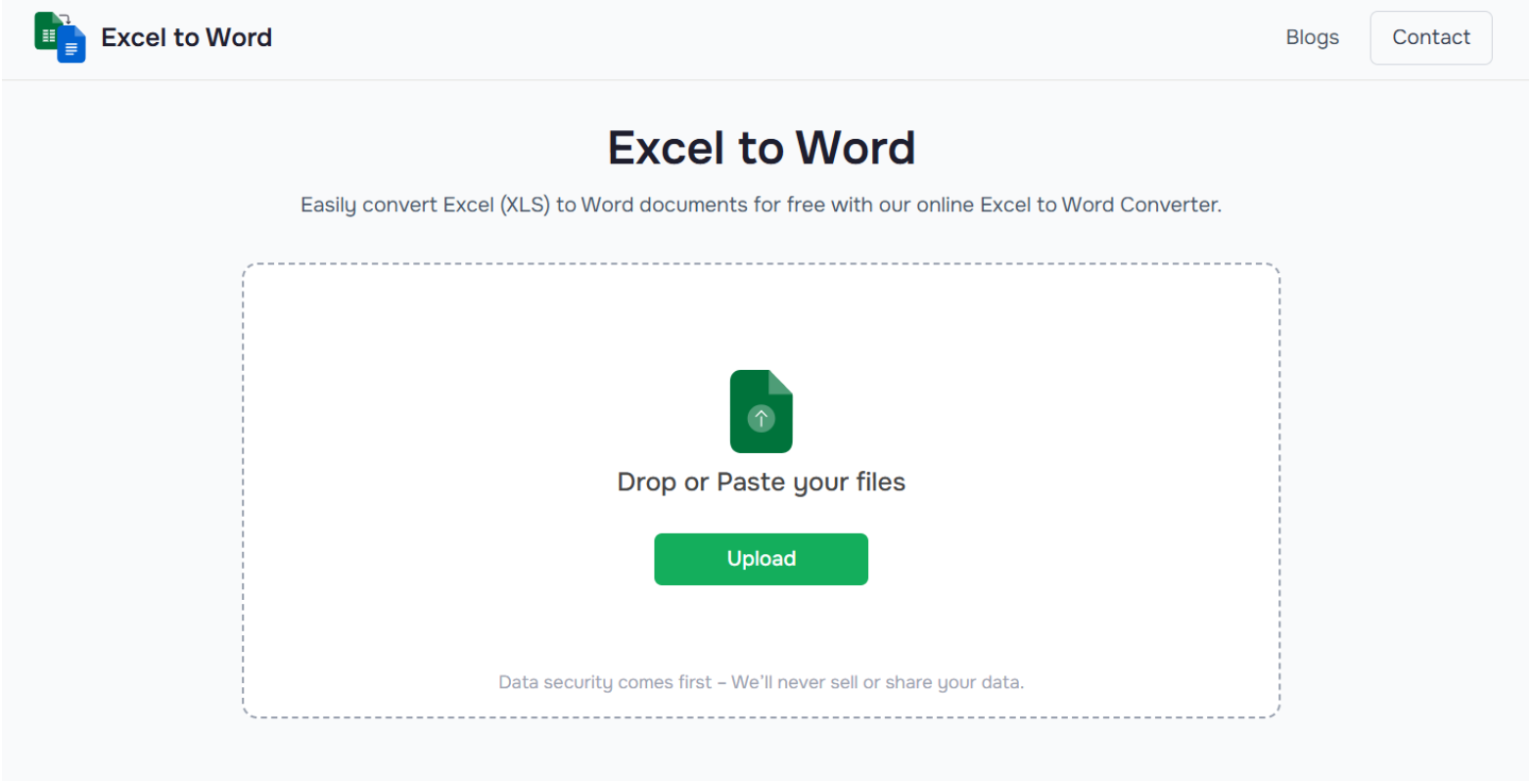
Note: Before uploading, check your file once. Make sure it contains the final data you want in Word. Remove extra rows, columns, or sheets if they are not needed.
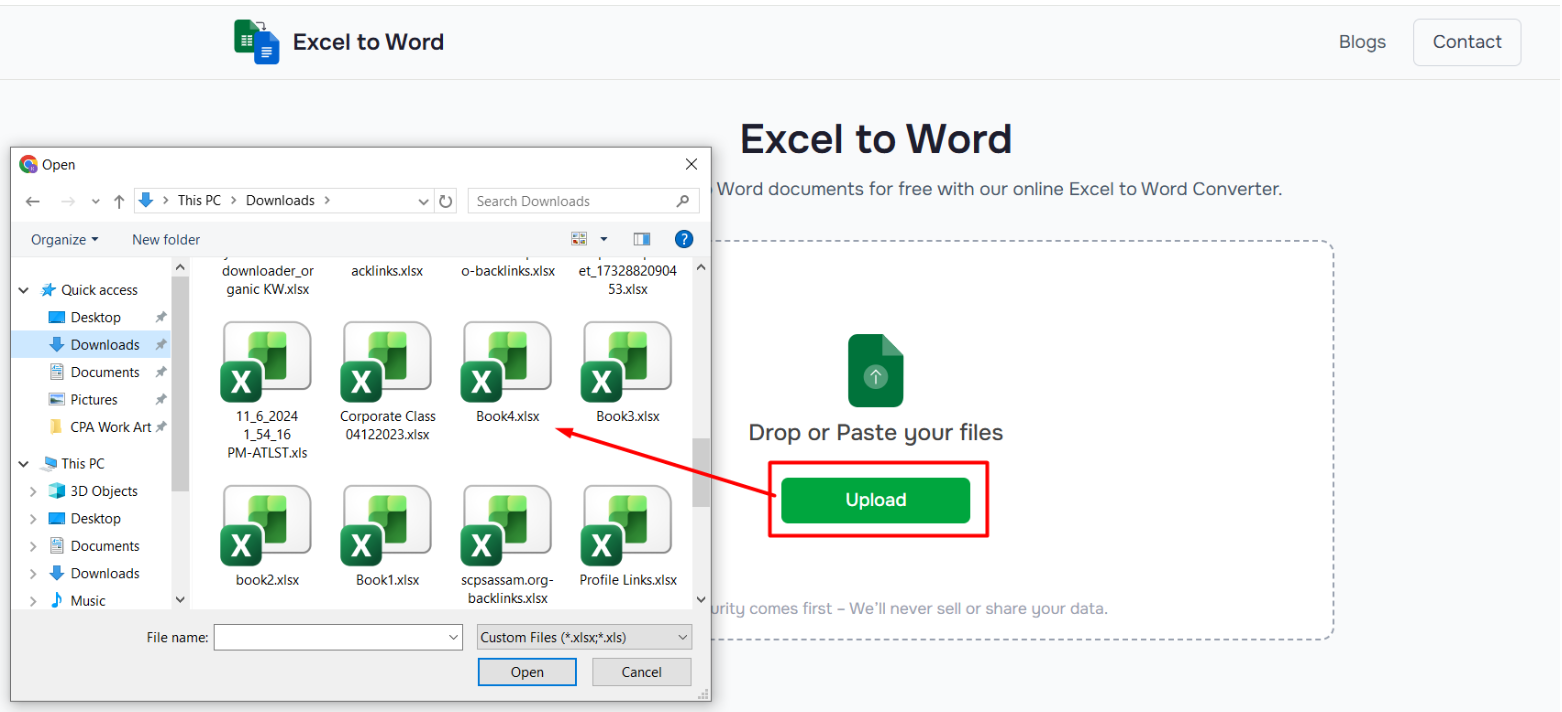
Step 2: Upload Your Excel File
Click the upload button and select your Excel file from your device. Once the file is upload, the tool prepares it for conversion.
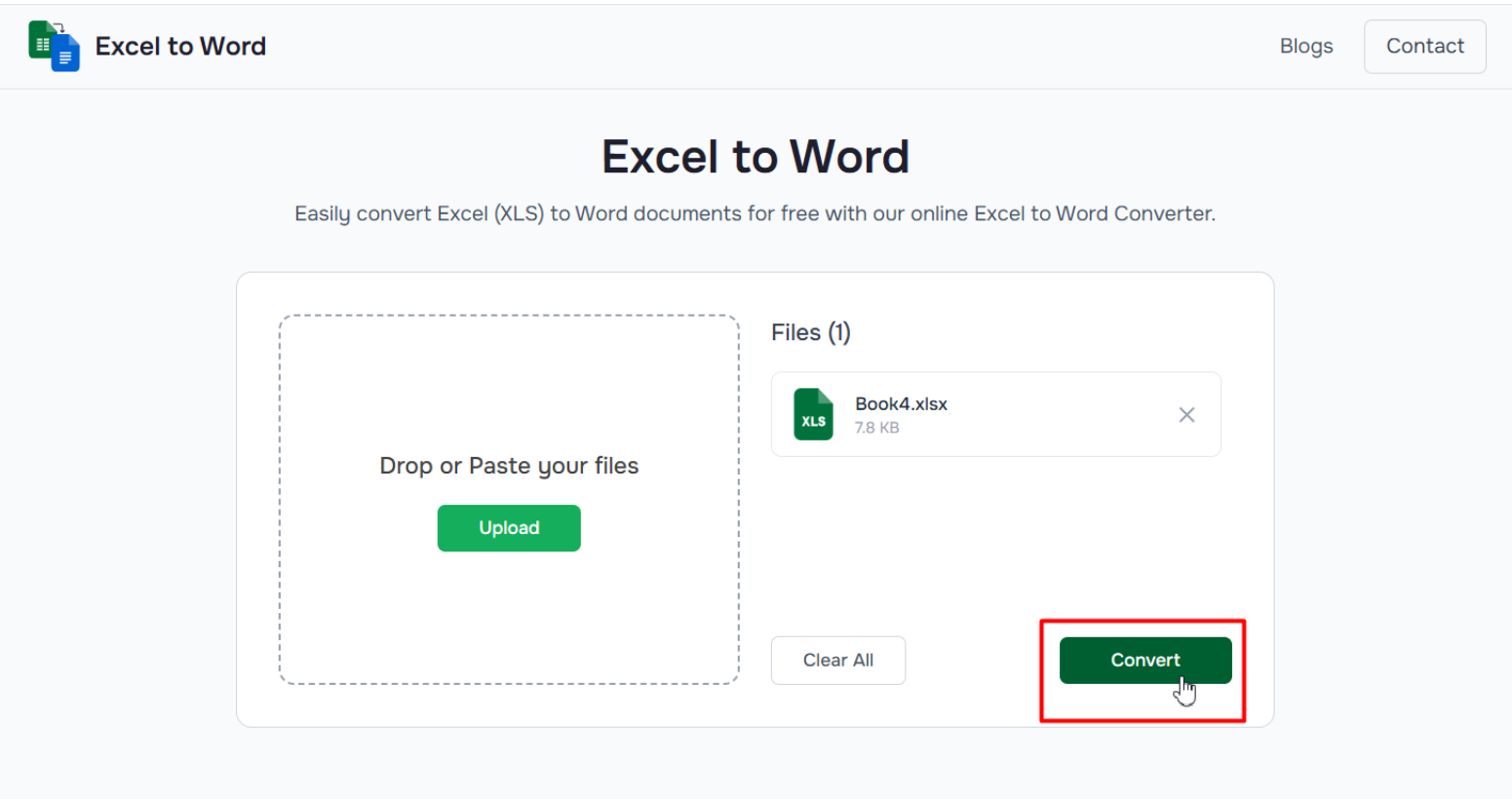
Step 3: Convert the File Online
Start the conversion after uploading your file. Excel to Word Converter analyze your spreadsheet and turns it into a Word document.
Step 4: Download the Word Document
Once the conversion is complete, download the Word file to your device.
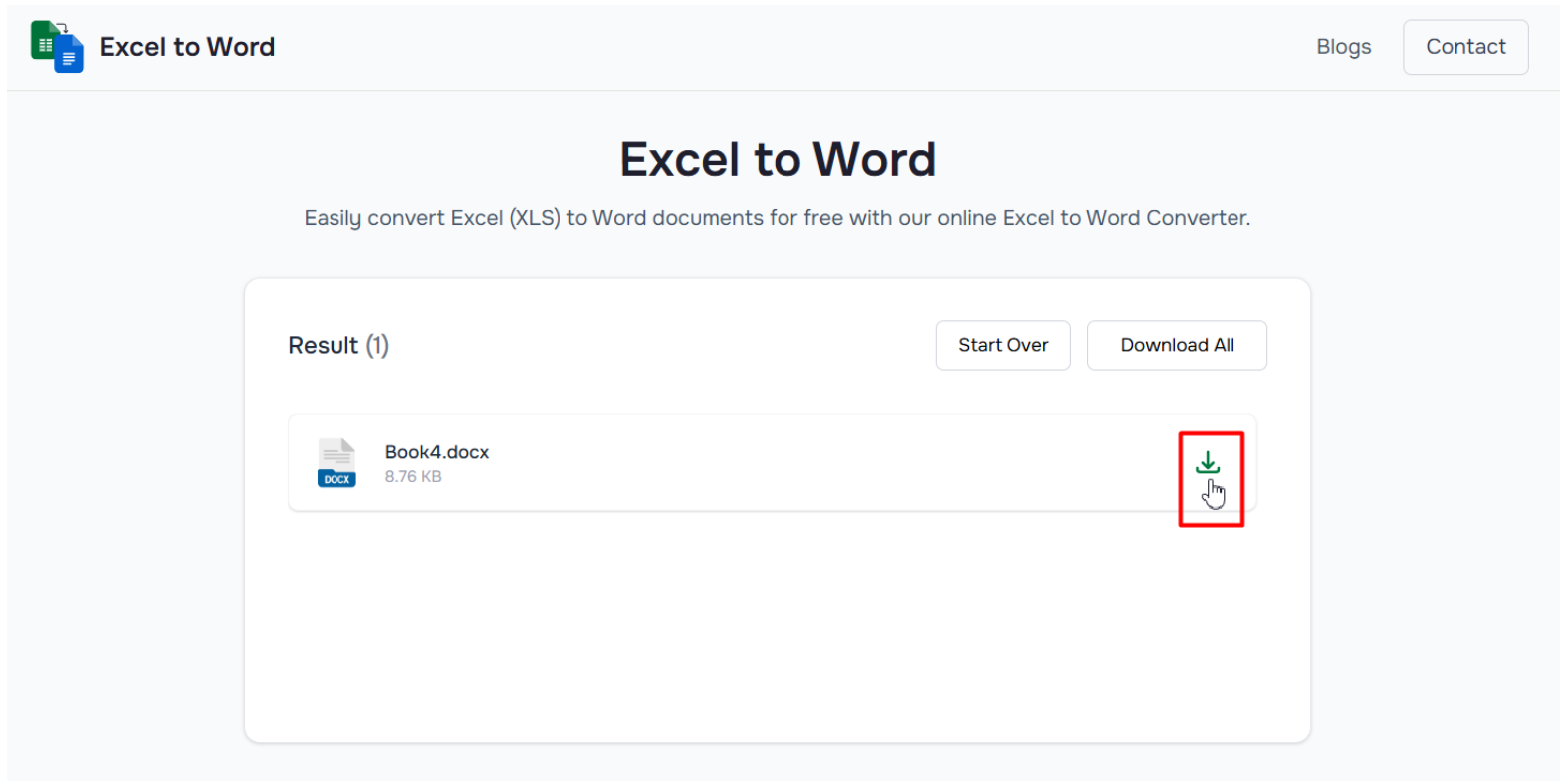
Your converted file is now ready to share, print, or use in a report.
Why This Tool Makes the Process Easier?
This makes the conversion process easier by removing the need to copy, paste, and fix tables manually.
When Excel data is moved into Word by hand, formatting can quickly become a problem. Columns may shift, spacing can break, and the table may need extra editing before it looks clean.
With Excel to Word Converter, the process is more direct. You upload your Excel file, convert it online, and download a well formatted Word document.
This saves time and gives users a cleaner document without dealing with Word table settings or manual layout work.
What Type of Excel Files Can You Convert?
tt can be used for many common spreadsheet files.
You can convert Excel sheets that contain:
-
Reports
-
Tables
-
Lists
-
Schedules
-
Invoices
-
Price sheets
-
Attendance records
-
Project records
-
Financial summaries
-
Business data
-
Student work
-
Office records
These files often start in Excel because they are easier to organise in rows and columns. But when the same information needs to be shared in a cleaner document format, Word becomes more suitable.
This online tool will help you move that data into Word without starting from scratch.
Final Thoughts
Converting an Excel sheet to a Word file does not need to be difficult.
Manual copy and paste method can create formatting problems, especially when the spreadsheet has several rows or columns. Tables may not fit properly. Spacing can change. The layout may need extra work.
Excel to Word Converter gives you a simpler option.
You upload a file, convert it online, and download a well formatted Word document. It is a convenient solution for anyone who wants to turn spreadsheet data into a clean Word document without extra formatting work.
FAQs
Can I convert Excel to Word online?
Yes. Exceltoword.net lets you convert an Excel file into a Word document online.
Do I need to copy and paste Excel data into Word?
No. You can upload the Excel file directly into the tool. It converts the spreadsheet into a Word document for you.
Will the converted Word file be editable?
Yes. After downloading the file, you can open it in Microsoft Word or another Word compatible editor and make changes if needed.
What should I check before uploading my Excel file?
Check that your Excel file contains the final data you want to convert. Remove extra rows, columns, or sheets that are not needed.
Why does manual copy and paste create formatting problems?
Excel and Word handle tables differently. When Excel data is pasted into Word, columns, spacing, borders, and table width may change.
Why should I use Online Excel to Word Converter?
Online Excel to Word Converter makes the process easier. You just upload your excel file and download a well formatted Word document without rebuilding the table manually or installing anying.